
FAQ
Ever wondered about Bliss Computers? We've got LCD screens straight out of New Jersey that'll light up your tech world! Forget retail woes and dive into our bulk discounts. Your school's budget will thank you!
Common FAQs
1. What is Bliss Computers?
Bliss Computers provides high-quality, competitively priced replacements for damaged laptop LCD screens, with DIY-friendly solutions for all major brands.
2. What Products Do You Offer?
3. What Brands Can You Provide?
4. How to Download Your Invoice from Our Website?
Need a copy of your invoice? Follow these simple steps to download it from our website in no time!
5. Why do I see multiple listings for what looks like the same screen?
We display multiple listings to match the different ways customers search for the same part. Some users search by part number, others by model, size, resolution, or refresh rate. To help everyone find what they need, we create optimized listings for each keyword variation — even if the item is the same.
How do I know which listing to choose?
You have two options:
Option 1:
If you recognize your part number, model, and screen specs (e.g., 15.6" FHD 30-pin IPS), you can confidently select any matching listing.
Option 2 (Recommended):
If you're unsure or want us to Pre-Verify before you order, just send us your device details.
- Email us your machine's serial number: sales@blisscomputers.net
- Or fill out our Quick Screen Match Form: Pre-Verify My Order
We'll verify your screen and send you a direct product link.
6. Why is Bliss Computers' Wrong-Order Rate So Low?
At Bliss Computers, we take pride in maintaining an exceptionally low wrong-order rate — around 1%, compared to the industry average of up to 30%.
Here's why:
✅ We Pre-Verify Orders
Before we ship, we check important details like:
- Laptop model and type
- Serial number (when provided)
- Original screen part number
This helps ensure you get the right screen the first time, not a guess-based match.
✅ We Don't Just Sell – We Match
Many sellers rely on general compatibility guesses, leading to frequent mismatches and returns. We take the time to match the exact part to your machine using real data.
✅ Our Experience Helps Eliminate Guesswork
With over 20 years in the business and millions of screens shipped, we've built a reliable process that minimizes errors.
✅ Peace of Mind
While our prices may be a few dollars higher than some sellers, you're paying for accuracy, less hassle, and no trial-and-error.
Bliss Computers = Fewer Returns, More Confidence.
Still unsure? Just send us your serial number and we'll confirm the right screen before you order.
7. How does Bliss Computers Tag Their Inventory for Security and Quality Control?
At Bliss Computers, we take inventory management and quality control seriously. Every product that leaves our facility is tagged with multiple layers of traceability to ensure accountability, authenticity, and support. Here's how we do it:
Tester Initials & Ship Date
Each item is labeled with the initials of the technician who tested it and the exact date it was approved for shipping.
Photographic Records
We maintain pictures of the actual unit at the time of packing, including stickers and serial tags, for future reference and verification.
Vendor Information
We log which authorized vendor or agent the part was sourced from, so every product has a clear supply chain trail.
Internal Bin & ID System
Our in-house labeling includes a unique Bin ID (referred to as IDRC) to track storage location and movement within our facility.
These tagging protocols help us maintain a high standard of accuracy, accountability, and after-sales support.
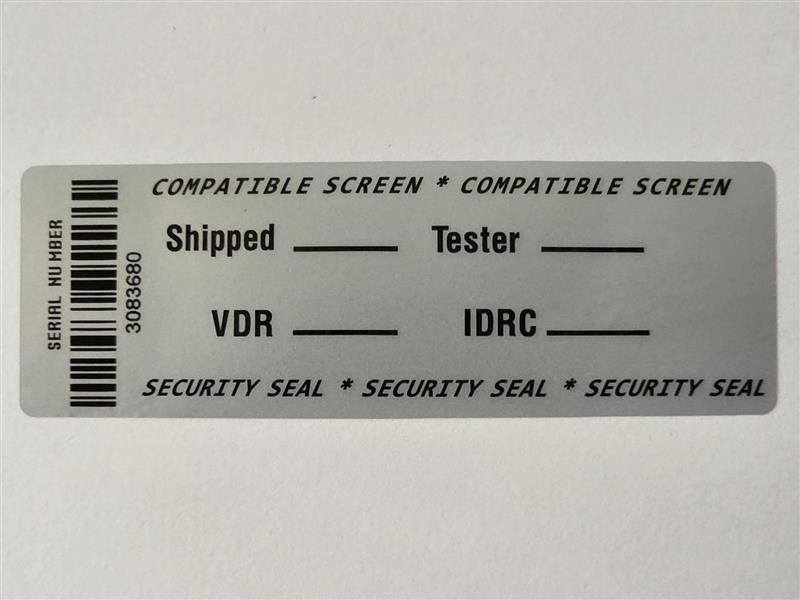
Sample Inventory Tag
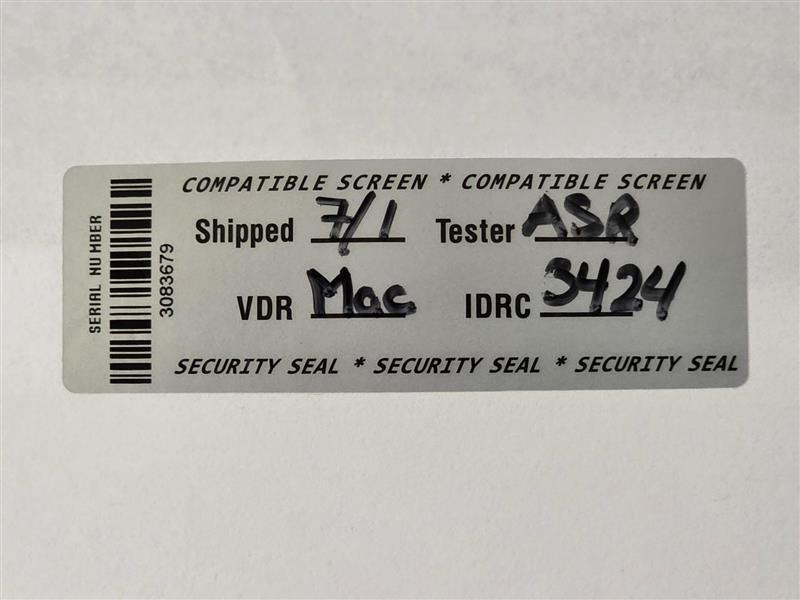
Tag Detail View
8. Why am I being offered a compatible or substitute part number instead of the exact P/N from my original screen?
Great question—and a very common one.
Many machines, especially those made several years ago, were built with multiple screen part numbers (also called "subs" or substitutes) that are completely interchangeable in function and form.
Here's what you need to know:
Manufacturing Timeline
Your original screen may have been manufactured in 2008 or 2009, even if your machine was made in 2010.
Multiple Vendor Sourcing
OEMs like HP, Dell, and Lenovo commonly sourced screens from multiple vendors for the same model. These may carry different part numbers but are still fully compatible.
Current Availability
In 2025, getting the exact original part number is often impractical due to discontinuation, upgrades, or stock availability.
Our Quality Assurance
We only ship parts that match or exceed the original specs, and if we ever send a substitute, it means:
- It has been confirmed as compatible by specs and connectors.
- It's either the same or better in quality and performance.
If you're absolutely set on the original P/N, let us know in advance—we'll do our best to locate it. Otherwise, trust that a compatible part will work just as well (and possibly better).
9. I need the exact part number (P/N) for my screen. Can you provide the same one my machine originally came with?
We understand many customers prefer to match the exact part number printed on their original screen. However, here's what you need to know:
Manufacturing Timeline
Your machine may have been manufactured in 2010, but the screen itself could date back to 2008 or 2009.
Multiple Screen Variants
Manufacturers often use multiple screen variants (known as substitutes or "subs") for the same model. These may differ slightly in part number but function identically.
Current Sourcing Reality
In 2025, sourcing that exact screen with that exact P/N from over a decade ago is possible, but rarely practical or necessary.
Here's why:
- We may have a substitute part that is fully compatible and often an improved or newer version.
- Insisting on an exact match may unnecessarily limit your options or delay your repair.
- We prioritize functionality, compatibility, and quality—not outdated part numbers.
If you must have an exact match, please let us know up front. But in most cases, we recommend trusting the compatibility guidance we provide based on your full model and screen specs.
Technical FAQs
1. What Should I Consider While Upgrading My Laptop Screen?
Consult a Technician First
Before diving into an upgrade, always consult with a qualified technician. They can help you determine if the upgrade is feasible and compatible with your laptop model.
LCD Whitelist
Some laptops have a whitelist embedded in their firmware, which restricts the use of certain LCD panels.
If the new screen’s EDID doesn’t match a model in the whitelist, the screen won’t display an image.
Advanced modifications to the laptop or LCD firmware may be required to bypass this limitation. You need to talk to your technician to determine if this is something your system can handle.
Cooling
Upgrading to a higher resolution increases the load on your video card, especially when moving from 1366 x 768 (1,049,088 pixels) to 1920 x 1080 (2,073,600 pixels)—almost double the pixel count.
Impact on Graphics: If you use your laptop for basic tasks like browsing or social media, the change won’t be drastic. However, if you play 3D games or run graphics-intensive applications, the video card will be under significantly more strain.
Heat Generation: Higher graphical load generates more heat, and if your laptop was not designed for a higher-resolution display, the cooling system may struggle to keep up. Many laptops have limited cooling capabilities due to their compact size, and the system may not be able to handle the extra heat generated by demanding applications at a higher resolution.
Risk Factor: Upgrading the resolution adds strain to your system and may impact long-term performance. It’s done at your own risk, and we cannot guarantee success. If the upgrade doesn’t work, we are not liable. Please use your best judgment.
You Experiment, You Take a Risk
Upgrading your machine with non-manufacturer-approved products is always a calculated risk. Be prepared for the possibility of issues, including screen incompatibility or other malfunctions.
Video Cable Compatibility
The video cable connection and pins must match up properly for the upgrade to work.
Cable Availability: It may be easy to find the right cable for your laptop, or it could be nearly impossible depending on your model.
If the cable is incompatible, the display won’t work correctly or may fail entirely. In some cases, finding the right cable may be challenging or costly, especially for laptops with unique connection types. Always double-check cable compatibility before proceeding with the upgrade.
Do Your Research
Before making any changes, take some time to research your specific laptop model.
Check online forums, especially hardware communities, to see if anyone else has upgraded the resolution on your exact model.
Find out if your laptop’s cable needs to be replaced, what part numbers are needed, and where to source them.
Investigate whether your laptop has an LCD whitelist and if your graphics chip can handle the added load.
Limited Coverage for Small Businesses
As a small business, our insurance coverage is limited when it comes to third-party or non-standard upgrades. Please ensure you understand the risks and consult your technician for guidance before proceeding.
Final Thoughts
Upgrading your resolution can be tempting, but it's not without risks. In many cases, upgrading a popular laptop with a low-resolution display can make it "perfect." However, always be prepared for potential challenges, and consult experts before moving forward. We don’t provide guarantees, and upgrading your laptop screen is always at your own risk.
2. What Should I Consider When Downgrading From a Touch Screen to a Non-Touch Screen?
Fit and Gaps
Removing the touch glass, especially if it's thick, can leave a noticeable gap in your machine's assembly. While some casings may close flush, others won't, resulting in a loose fit that could cause durability issues.
Durability Concerns
Without the touch glass layer, the screen may not sit securely. If you frequently travel or use your machine in active environments, the loose screen could easily break.
Loss of Touch Functionality
Downgrading to a non-touch screen means losing the ability to use touch functions, which could limit your productivity if you rely on it for certain tasks.
Software Compatibility
Machines designed with touch screens often operate as hybrids (laptop and tablet). Switching to a non-touch screen may result in software errors or reduced functionality since your device was built with touch capabilities in mind.
Think Long-Term
While switching to a non-touch screen may seem like a cost-saving option, it could lead to long-term usability and durability challenges. Consider how you use your machine daily before making the change.
Touch-Downgrade
The laptop may not respond properly when switching from touch to non-touch, the new screen may not be recognized. You may receive errors from your device manager.
Returning the screen due to ordering the wrong item will result in restocking fees.
Click hear to learn more3. How to Fix Ghost Touch Issues on a Touch Screen?
Q: My touch screen is acting on its own — the cursor moves or clicks randomly (ghost touch), sometimes at the same spot on the screen. Why does this happen, and what can I do to fix it?
A: Ghost touch occurs when your device registers touches or gestures that you didn't make. This can be caused by hardware issues (faulty digitizer, loose cable, damaged screen), driver corruption, or software conflicts.
Try these steps to troubleshoot:
1. Enable the Touch Screen in Device Manager
- Open Device Manager
- Expand Human Interface Devices
- Locate HID-compliant touch screen (or similar)
- Right-click → If "Enable" is available, click it
2. Reinstall the Touch Screen Driver
- In Device Manager, right-click HID-compliant touch screen
- Select Uninstall device → Restart your machine to reinstall automatically
3. Run System & Driver Updates
- Install the latest OS updates
- Update your graphics driver
- Update your BIOS/firmware
4. Run a Touch Screen Diagnostic Test
Many manufacturers include built-in diagnostics or downloadable tools to test touch input
5. Check Display & Cable Connections
If possible, have a technician verify that the digitizer cable is seated correctly and not damaged
6. Adjust Power Management Settings
- In Device Manager, under HID-compliant touch screen → Properties → Power Management tab
- Uncheck "Allow the computer to turn off this device to save power"
7. Reset or Restore the System
- Try a Microsoft System Restore to a point before the issue started
- If that fails, perform a factory reset/system recovery
If the problem continues:
Ghost touch is often a sign of a failing digitizer or screen assembly. In many cases, replacement is the only permanent fix.
For more details, see: HP Support — Touch Screen Troubleshooting (applies broadly to many devices).
4. What are OEM Laptop Screen Replacements?
What is an OEM screen replacement?
OEM (Original Equipment Manufacturer) screens are produced by the same manufacturers that supply screens to laptop brands. These screens match the original quality and specifications.
Are these screens the same as the original?
Yes, OEM screens are identical to the original screens installed in your laptop. They meet the same quality, resolution, and performance standards.
Will an OEM screen work with my laptop?
Yes, as long as the specifications (size, resolution, connector type, etc.) match your original screen. If you're unsure, we can help verify compatibility.
Is an OEM screen different from aftermarket screens?
Yes. OEM screens come from the same factories that produce for laptop brands, ensuring high quality. Aftermarket screens are third-party products that may not meet the same standards.
Why choose an OEM screen instead of buying from an official store?
Laptop manufacturers often charge significantly more for replacement screens to encourage customers to buy a new device. OEM screens offer the same performance at a fraction of the cost.
How do I know if an OEM screen is right for me?
If you want a high-quality replacement screen without paying a premium price, an OEM screen is the best option.
Need help? Contact us for assistance in finding the right screen for your laptop.
5. What is Bliss Computers Dead Pixel Policy?
What is a dead pixel?
A dead pixel is a small defect on the screen where a pixel does not function properly. It may appear as a black, white, or colored dot that does not change. These pixel issues can also be referred to as:
- Dead Pixel – A pixel that does not light up and remains black.
- Hot Pixel – A pixel that stays permanently bright (white or a specific color).
- Stuck Pixel – A pixel that remains frozen on one color and does not change.
- Bad Pixel – A general term for any malfunctioning pixel.
- Black Pixel – A pixel that does not illuminate at all.
- White Pixel – A pixel that stays white and does not adjust to display content.
- Not Working Pixel – Another term used to describe a defective pixel.
What is Bliss Computers’ dead pixel policy?
For standard purchases, our policy allows 3 to 5 dead pixels per screen, which is within industry standards. Displays with up to 5 dead pixels are not considered defective and are not eligible for replacement.
Do you test for dead pixels before shipping?
All our screens undergo factory testing to ensure quality. However, individual pre-shipment testing is not cost-effective due to the high cost of specialized equipment and labor.
Do you offer zero dead pixel screens?
Yes, we provide custom pre-tested zero dead pixel screens for bulk orders (such as for military or medical equipment) where precise display quality is critical. This service is not available for single purchases.
Why isn’t zero dead pixel testing available for single purchases?
Testing every screen for zero dead pixels requires specialized equipment and additional labor costs, making it impractical for single-item orders. Instead, we follow the industry-standard dead pixel policy for all regular purchases.
6. What is Screen Resolution?
What is screen resolution?
Resolution refers to the number of pixels that make up your screen display. It's usually shown as width x height (for example, 1920x1080). It defines how sharp and clear your display looks.
Why does resolution matter when buying a replacement screen?
Using the correct resolution ensures your replacement screen matches your original setup. If the resolution is different, images may appear blurry, stretched, or scaled incorrectly.
Does higher resolution mean better quality?
Generally, yes. Higher resolutions like 2560x1600 or 3840x2160 offer sharper images and more workspace. However, your system must support the higher resolution for it to work properly.
Is resolution the only thing I need to match?
No. Resolution is important, but you also need to match connector type, screen size, and sometimes refresh rate or backlight type for full compatibility.
7. Why don't We Include Installation Instructions with Displays?
At Bliss Computers, we specialize in providing high-quality replacement parts — not how-to-do guides.
Our core customers are professional repair technicians and shops who already know how to handle installations. They rely on their skills and experience, and we support them by delivering the reliable components they need — not step-by-step tutorials.
Need Help With Installation?
If you're not confident with tools or unsure about the process, we strongly recommend visiting a local professional repair store.
We supply to trusted shops all across the country — if you need a referral, just ask. We'll gladly connect you with a qualified repair service near you.
8. How Can Repair Shops Ensure Correct Orders?
If you're a repair business placing screen orders with us, it's critical to verify the exact part needed. The era of "one screen fits all" is over. Today's machines often come with multiple screen options, even under the same model name.
How to Place a Correct Repair Order:
Step 1: Always Capture the Serial Number
- Take a clear picture of the serial number label from the back of the machine before disassembly.
- If the machine is already closed or remote, use the CMD method on Windows (wmic bios get serialnumber) to retrieve it.
No Excuses – Every Buyer Has a Phone
Even if your customer no longer has the device in hand:
- Call them.
- Ask them to take a quick picture of the serial number sticker and send it with the order number.
- They can text or email it — or you can simply forward it to us.
It's not too late — we can hold the shipment temporarily to help get the correct info. Getting it right the first time is always faster than processing returns.
Why This Matters:
- Since 2007, the shift from CCFL to LED and now OLED/Mini-LED has introduced multiple display variants within the same device line.
- Relying only on model numbers is no longer enough.
Thumb Rule:
- Old Era (CCFL): One machine, one screen
- New Era (LED/OLED): One machine, multiple screen options (FHD, UHD, touch, non-touch, matte, glossy, etc.)
Taking 30 seconds to confirm the serial number avoids days of delay and costly errors.
When in doubt, verify before you order — and we'll help you match the right screen.
9. Why Do My Keyboard and Trackpad Stop Working in Windows After a Screen Replacement, Even Though They Work in BIOS?
This is a common post-repair issue and is usually software or driver-related, not hardware failure. If the keyboard and trackpad work in BIOS but stop responding in the operating system (e.g., Windows), follow these troubleshooting steps:
1. Check and Update Drivers
- Use Device Manager to uninstall and reinstall drivers for the keyboard and trackpad.
- Download the latest drivers directly from your machine manufacturer's website.
- Some brands (e.g., HP, Dell) offer proprietary driver update tools.
- In Device Manager, try disabling "Intel Integrated Sensor Solution" under System Devices—this has resolved similar issues for other users.
Tip: Use an external keyboard/mouse while troubleshooting.
2. OS-Level Troubleshooting
- Boot into Safe Mode to see if a third-party software conflict is causing the issue.
- Ensure Tablet Mode is not enabled (especially on 2-in-1 devices).
- Try a System Restore to a time before the issue began.
- Clear NVRAM (non-volatile RAM) if your machine supports it.
- If a recent Windows update caused the problem, consider rolling it back.
3. Hardware Checks (Less Common)
- Double-check that ribbon cables to the keyboard/trackpad are fully seated.
- Perform a CMOS reset or EC reset if applicable.
- In rare cases, the keyboard/trackpad control chip may have issues.
Some users fixed the problem by:
- Reconnecting the original screen, booting up once,
- Then replacing it again without disconnecting the battery.
4. Seek Professional Help
If you've tried the above and still have no keyboard or touchpad input in the OS, reach out to your machine's manufacturer or a professional repair shop.
Important: Always back up your data before making hardware changes or performing system resets.
10. Why does the touchscreen work in BIOS but not in Windows after replacement?
If your touchscreen is responsive in the BIOS but not working once Windows loads, this strongly suggests that the issue is not with the screen itself. Instead, it points to a software or driver-related problem within the operating system.
Here are some steps to troubleshoot:
Check Device Manager
Look for any driver errors or unrecognized devices under "Human Interface Devices." Try updating, reinstalling, or enabling the touchscreen driver.
Run Windows Updates
Missing or outdated updates can affect touchscreen functionality. Make sure your system is fully up to date.
Reset Touch Settings
In Windows, go to Control Panel > Tablet PC Settings (if available) and reset calibration or restore defaults.
Disable/Enable Touchscreen
In Device Manager, try disabling and then re-enabling the touchscreen device.
Boot into Safe Mode
Check if the touchscreen works in Safe Mode. If it does, a third-party application or driver may be interfering.
Check for Conflicting Software or Sensor Drivers
Some systems may have background software or sensor services that interfere. For example, disabling "Intel Integrated Sensor Solution" has worked for some users.
System Restore or Clean Install
If the issue started after a Windows update or other changes, try restoring to an earlier point or doing a clean OS install.
Conclusion:
If the screen works in BIOS, your hardware is functioning. The problem lies in the operating system environment. This is not a screen defect, and replacing the screen again is unlikely to help. Troubleshooting Windows or seeking professional software support is recommended.
11. Do you provide manual dead pixel testing before shipping?
Do you provide manual dead pixel testing before shipping?
Yes, we occasionally offer manual dead pixel testing as a courtesy when requested. This service is based on availability and must be arranged in advance.
Is there a fee for dead pixel manual testing?
No, courtesy testing is free of charge. However, it is not a standard service and requires prior coordination.
How can I request this manual testing for my order?
- Add a note in your order requesting manual testing
- Contact us before placing the order to confirm whether your panel can be tested and if our technician is available
- Once confirmed, we will manually test the panel before shipping
Are all panels eligible for manual testing?
Not all panels can be manually tested at the warehouse due to packaging or handling limitations. We recommend checking with us in advance. They come pre-tested against defects from the factory.
What if I request manual testing but don't communicate first?
Manual testing is only offered with prior agreement. Orders without communication may be shipped without testing.
Can I leave positive feedback for this service?
Yes, we appreciate all feedback. It helps us continue offering personalized services like manual testing.
Please visit our Dead Pixel Policy disclosures for more information.
12. Why has my Surface Pen or Smart Pen stopped working after a screen replacement?
If your Surface Pen or Smart Pen has stopped working after a screen replacement, the issue is often related to software, drivers, or connectivity—not necessarily the hardware itself. Follow these steps to troubleshoot:
1. Basic Checks and Restarts
- Restart the Device: A simple reboot can often restore functionality.
- Force Shutdown and Restart: Hold down the power button for 10–20 seconds until the screen turns off, then press it again to power back on.
- Check Pen Battery & Connectivity: Ensure the pen is charged. If it uses Bluetooth, verify that it is paired correctly in Windows settings.
- Pair the Pen Again (if needed): Hold the top button for 5–7 seconds until the LED flashes white. Go to Settings > Bluetooth & devices and re-pair the pen.
2. Software and Driver Troubleshooting
- Run Surface Diagnostic Toolkit: This Microsoft tool helps identify and fix many common issues.
- Check for Windows and Surface Updates: Outdated drivers or firmware can affect touch and pen input.
- Reinstall Touchscreen Drivers:
- Open Device Manager, expand Human Interface Devices, and uninstall:
- HID-compliant touchscreen drivers
- Intel(R) Precise Touch Device
- Then click Scan for hardware changes to reinstall.
- Note: Do not uninstall touchscreen drivers on Surface Pro X.
- Install WinTab Drivers (if applicable): For older software requiring pen input, download WinTab drivers from Microsoft's website.
- Optional - Calibrate the Screen: In rare cases, recalibration may help with pen accuracy.
3. Advanced Troubleshooting
- Test Touchscreen in UEFI: Restart the device and enter UEFI to check if the touchscreen works there. If it does, the issue is likely software-related.
- Run System File Checker (SFC): This tool checks for corrupted system files that may affect touch and pen features.
- Reset the Surface (last resort): Back up your data first. A system reset can clear up unresolved software conflicts.
13. Dell Laptop — What Does 2 Amber, 7 White Blinking LED Mean?
Applies to: Dell Inspiron 7559 and other Dell models using LED blink diagnostic codes
Blink Pattern: 2 Amber + 7 White
Diagnosis: LCD Failure
What This Code Means
The 2 amber and 7 white blinking LED pattern is a Dell diagnostic indicator signaling a problem with the LCD panel or its connection. This may include screen hardware failure, cable issues, or poor connectivity between the screen and motherboard.
1. Visually Inspect the LCD
Power off the laptop and disconnect all devices.
Check the screen for:
- Cracks
- Discoloration
- Flickering or lines during startup
If the screen shows no output at all, proceed to cable checks.
2. Reseat the LCD Cable
⚠️ Advanced step — requires disassembly. Refer to your model's service manual.
- Disconnect power and battery (if removable).
- Open the casing and locate the LCD ribbon cable connecting the screen to the motherboard.
- Gently disconnect and reconnect it to ensure a firm connection.
- Reassemble and power on to test.
3. Perform a Hard Reset
- Disconnect the power adapter and battery.
- Hold the power button for 15-20 seconds to discharge internal power.
- Reconnect battery and AC adapter.
- Power on and check if the blinking code persists.
4. Run Dell LCD BIST (Built-In Self-Test)
- Hold down the "D" key while powering on the laptop.
- The screen should cycle through colors and patterns.
- If this test fails or doesn't show, it confirms LCD panel or cable issues.
- If the screen works during BIST but not during boot, it may be a software or GPU issue.
5. Test with an External Monitor
- Connect an external display via HDMI, VGA, or DisplayPort.
- Press F8 (or appropriate key combo) to switch display modes.
- If external output works, your internal LCD is likely faulty or improperly connected.
Additional Tip
Even if the screen seems to function, the 2 amber / 7 white code still indicates a deeper issue. If the screen works intermittently or only in safe modes, consider:
- Updating video drivers from Dell's support site.
- Testing different resolutions or refresh rates.
Still Not Working?
If all steps fail, the LCD panel or motherboard display controller may need replacement. Reach out to Dell Support or a certified technician.
Related Tags:
Dell LED Code 2 Amber 7 White, Inspiron 7559 LCD failure, Dell screen diagnostic, Dell laptop blinking code, Dell LCD BIST test
14. Why Can't I Adjust My Screen Brightness?
If you're unable to change your laptop's screen brightness, it could be due to software conflicts, incorrect settings, or outdated drivers. Follow the steps below to troubleshoot and resolve the issue.
1. Restart Your Laptop
Sometimes a simple reboot clears out temporary software glitches or resets misbehaving display settings.
2. Check Adaptive Brightness (Windows)
Windows may automatically adjust brightness based on ambient lighting.
Steps:
- Press Windows + I → Go to System → Display
- Scroll to Brightness & Color
- Uncheck: "Change brightness automatically when lighting changes"
Alternative Method:
- Go to Control Panel → Power Options
- Click your active power plan → Change advanced power settings
- Expand Display > Enable adaptive brightness → Set it to Off
3. Update or Reinstall Display Drivers
Outdated or corrupt graphics drivers are a common cause of brightness issues.
Steps:
- Press Windows + X → Device Manager
- Expand Display adapters
- Right-click your graphics driver (Intel, NVIDIA, AMD) → Update driver
If updating doesn't help:
- Select Uninstall device
- Restart your laptop – Windows will attempt to reinstall the correct driver.
4. Use OEM Graphics Software
Your laptop may have its own graphics utility that overrides Windows settings.
Check for:
- Intel Graphics Command Center
- NVIDIA Control Panel
- AMD Radeon Settings
Open the relevant app and look for brightness controls under Display Settings.
5. Boot into Safe Mode
This helps determine if a third-party app or service is causing the issue.
Steps:
- Go to Settings → System → Recovery → Advanced Startup → Restart now
- Choose Troubleshoot → Advanced Options → Startup Settings
- Restart and select Safe Mode
Once in Safe Mode, check if brightness adjustment works. If yes, a third-party driver or software is likely the cause.
6. Check BIOS/UEFI Settings
Some laptops have display-related controls at the firmware level.
Steps:
- Restart your laptop
- Enter BIOS/UEFI by pressing F2, DEL, or ESC (varies by brand)
- Look for Display or Brightness settings
Still Not Working?
If none of the steps resolve the issue:
- Try connecting to an external monitor and test brightness there
- Consider performing a system restore to an earlier date
- Contact technical support or a certified repair center
15. What's the difference between a Glossy and a Matte screen, and which one is better for me?
We sell both Glossy and Matte screens because each has unique benefits depending on your needs. Here's a quick comparison:
Glossy Screens
Pros:
- Rich, vibrant colors — ideal for watching videos, photo editing, and presentations
- Sharper contrast, deeper blacks, and more "pop" to the image
- Great for indoor use or low-light environments
Cons:
- More glare and reflections from sunlight or bright lighting
- Fingerprints and smudges are more visible
Matte Screens
Pros:
- Anti-glare coating reduces reflections — perfect for outdoor or bright-light use
- Less eye strain over long work sessions
- Fingerprints and smudges are less noticeable
Cons:
- Colors may appear slightly less vibrant compared to glossy
- Slightly softer image sharpness due to anti-glare coating
Bottom Line:
- Choose Glossy if you want maximum color and contrast and mostly use your machine indoors.
- Choose Matte if you often work outdoors, in bright offices, or prefer reduced glare for comfort.
We stock both options for many models, so you can inquire with us about desired finish pre purchase.
16. Why is Keyboard and Mouse Not Working after Screen Replacement?
Question:
After installing a new screen, my keyboard and mouse stop working in Windows. They work fine in BIOS, but once Windows loads it's like the laptop is stuck in tablet mode. How can I fix this?
Answer:
This issue is not caused by the screen itself, but by a Windows driver conflict. Many users have reported that the Intel Integrated Sensor Solution can cause the system to act as if it is in tablet mode, disabling the keyboard and touchpad.
Solution:
- Open Device Manager in Windows.
- Expand the System Devices section.
- Locate Intel Integrated Sensor Solution.
- Disable it.
- Restart your laptop.
After restarting, your keyboard and mouse should work normally again.
17. Can you give me the exact measurements (length, width, height) of the screen?
We don't match laptop screens by measurements anymore, because even a small difference can make a screen incompatible. Instead, screens are verified using your laptop's serial number or model information. This method is much more accurate and ensures you get the right screen that fits perfectly.
18. How to Find Your Machine Serial Number (or Model Info)?
To make sure we send you the exact screen replacement, we need your Machine Serial Number (or equivalent info, depending on brand). Here's how to find it for each major brand:
Dell
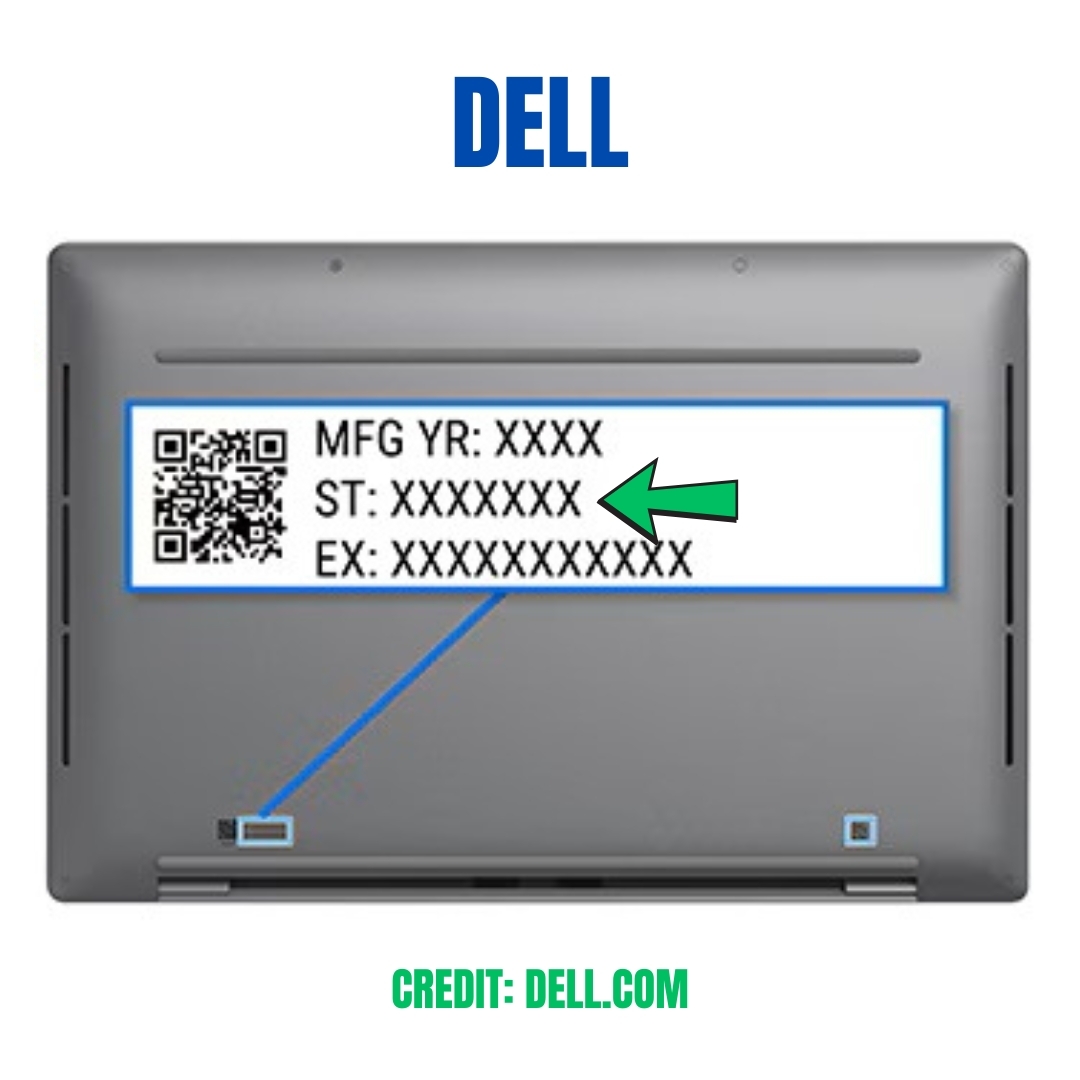
- Look for a Service Tag or Express Service Code on a sticker at the bottom or under the battery.
- Usually 7 characters (letters & numbers).
Dell (All-in-One Desktops)
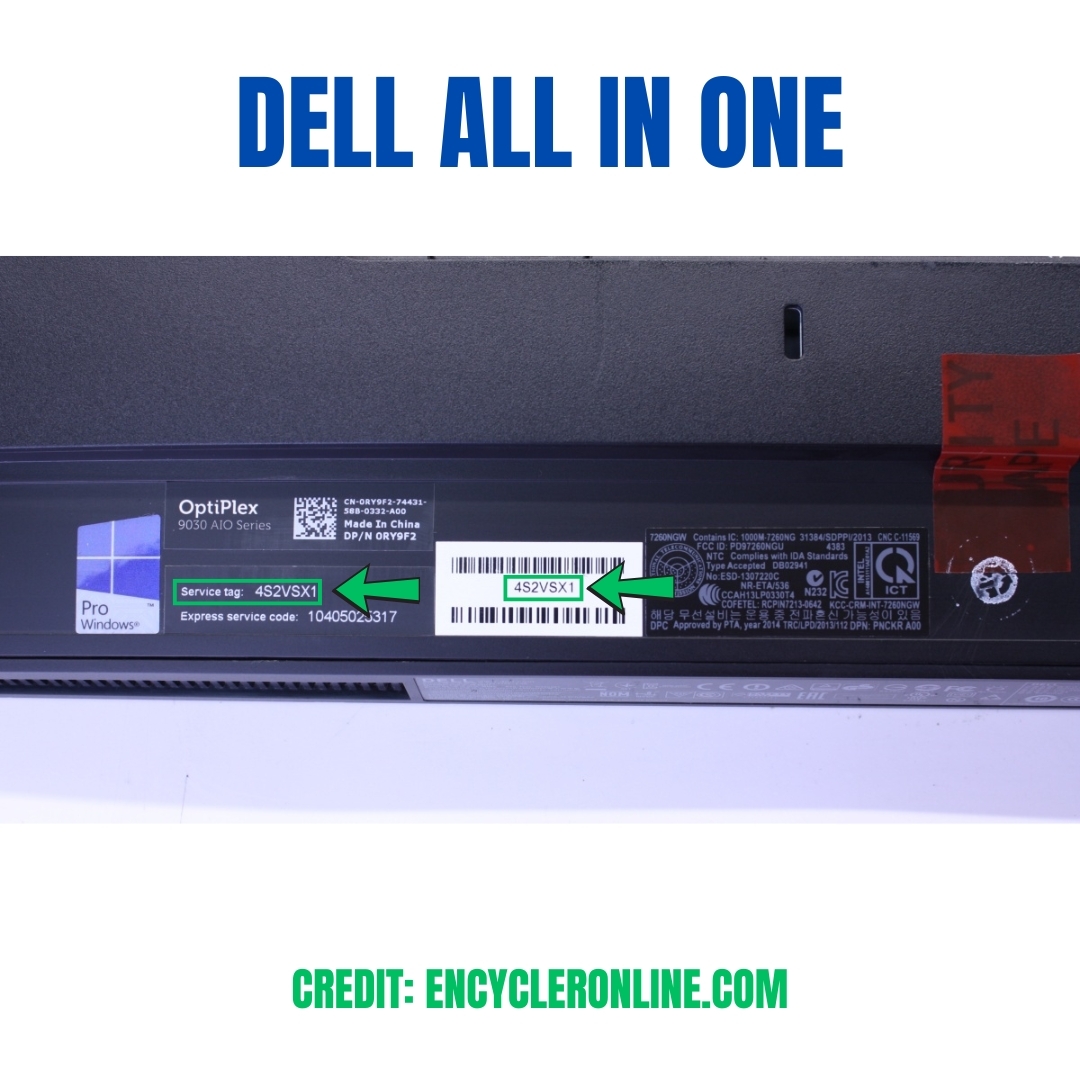
- The Service Tag / Serial Number is printed on a label at the back of the monitor stand, base, or rear panel of your AIO device.
- Format: 7 characters (letters & numbers).
- You can also press F2 at startup to open BIOS, where the Service Tag is displayed.
Lenovo
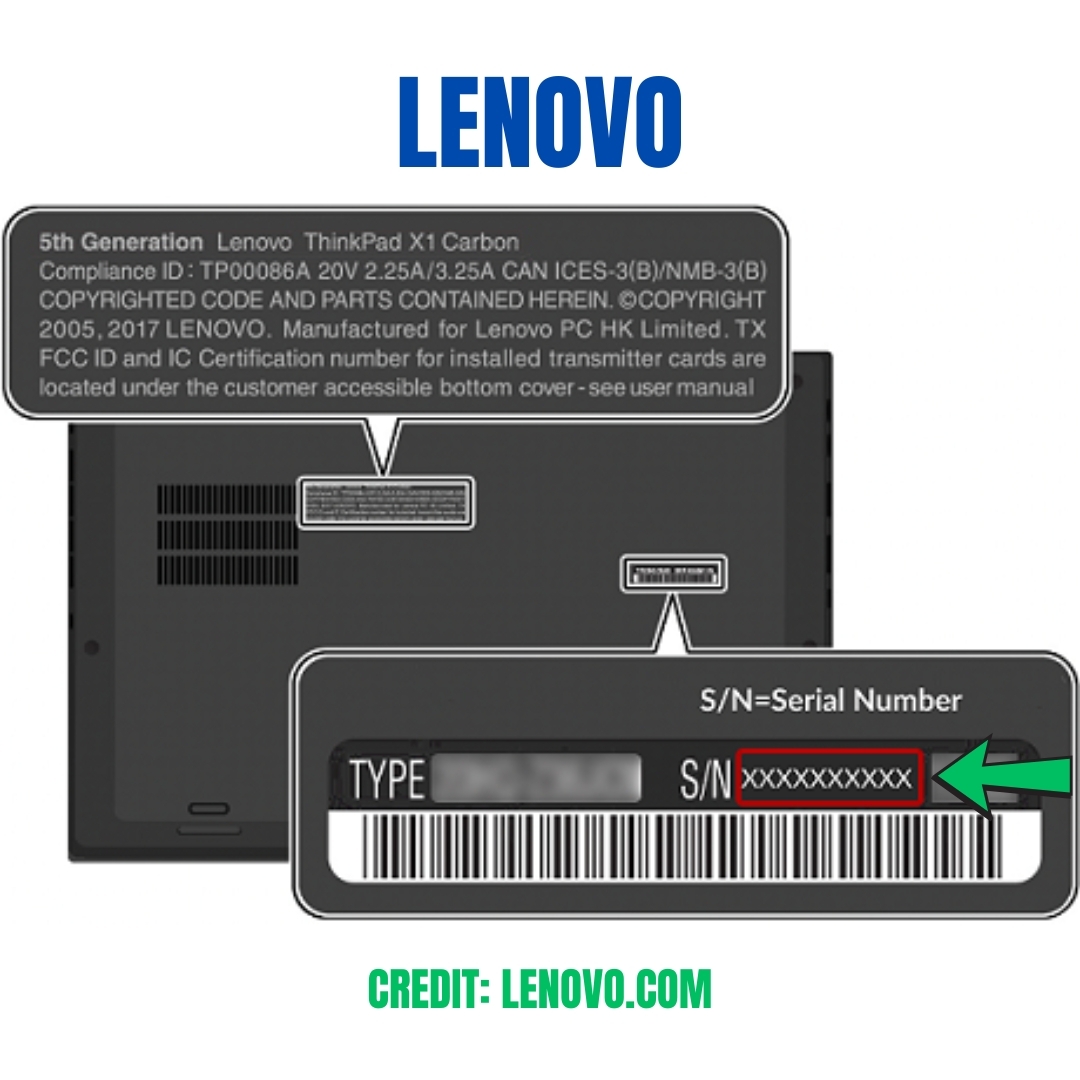
- Found on a label at the bottom/back of your laptop.
- Serial Number (S/N) is usually 7–8 characters.
- Shortcut: Press Fn + Esc to display it on screen.
Acer
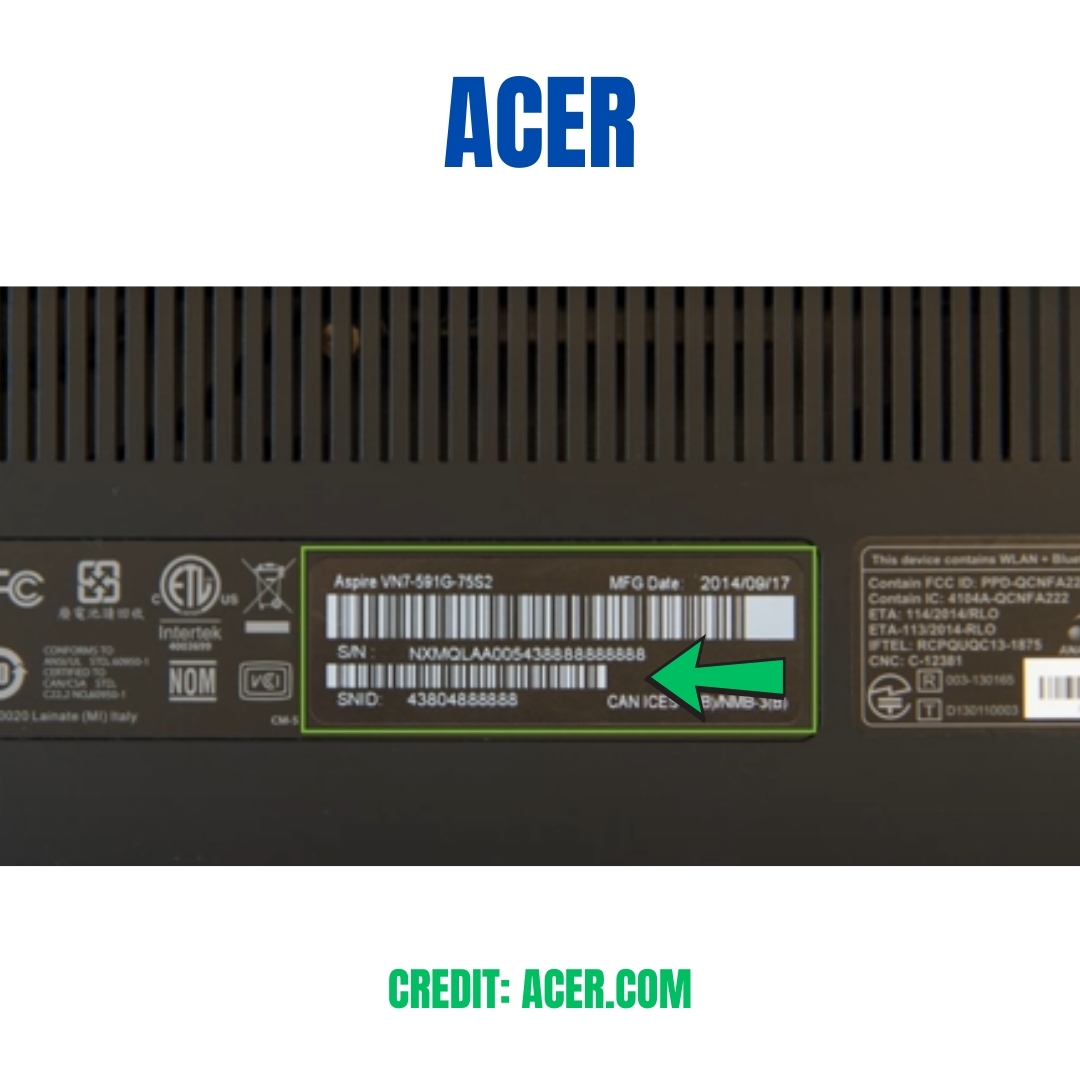
- Located on the sticker label at the bottom.
- Acceptable formats:
- SNID – 11 digits
- Serial Number – 22 characters
Asus
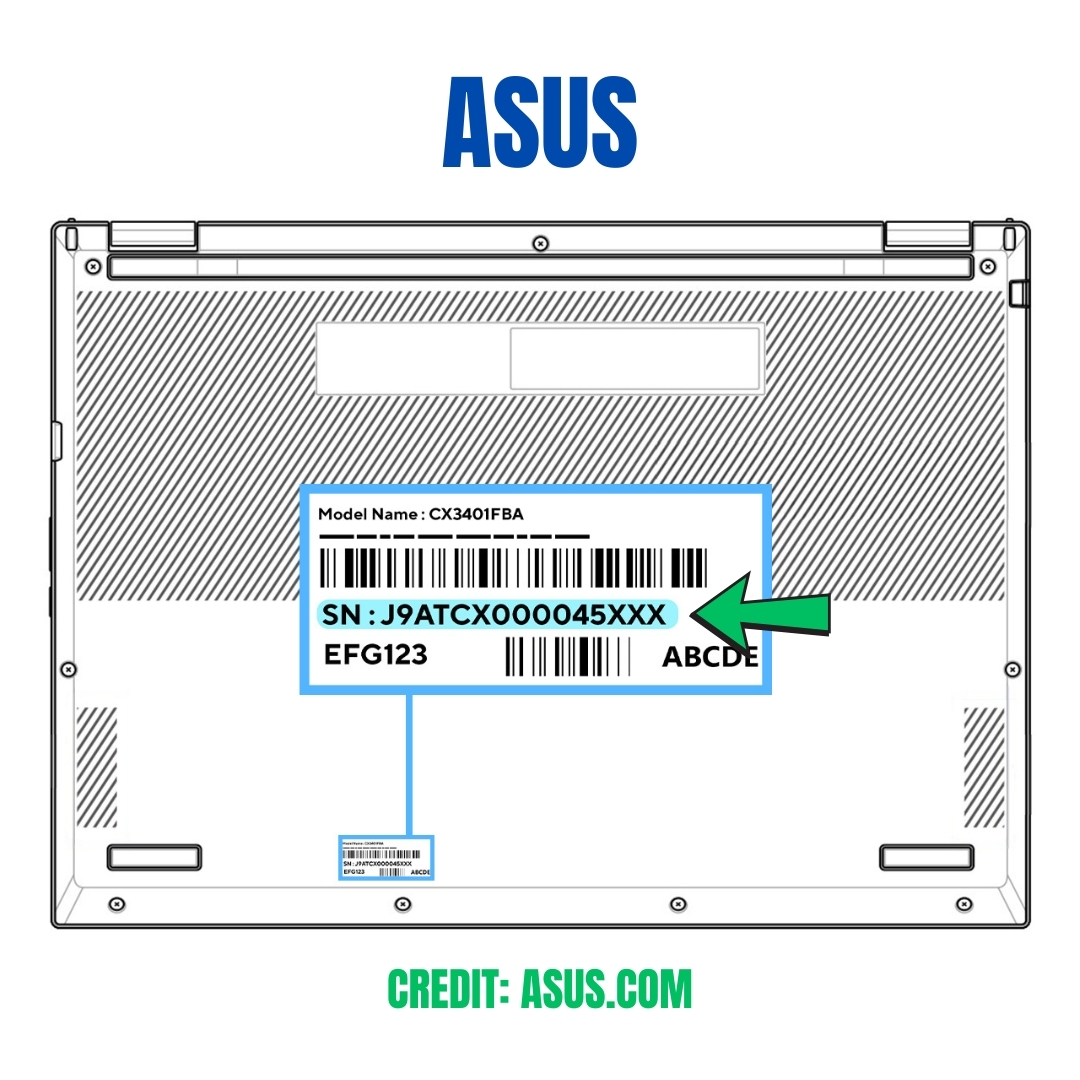
- Found on the back of the laptop or on the original box.
- Serial Number (S/N) is usually 12–15 characters (letters & numbers).
Samsung
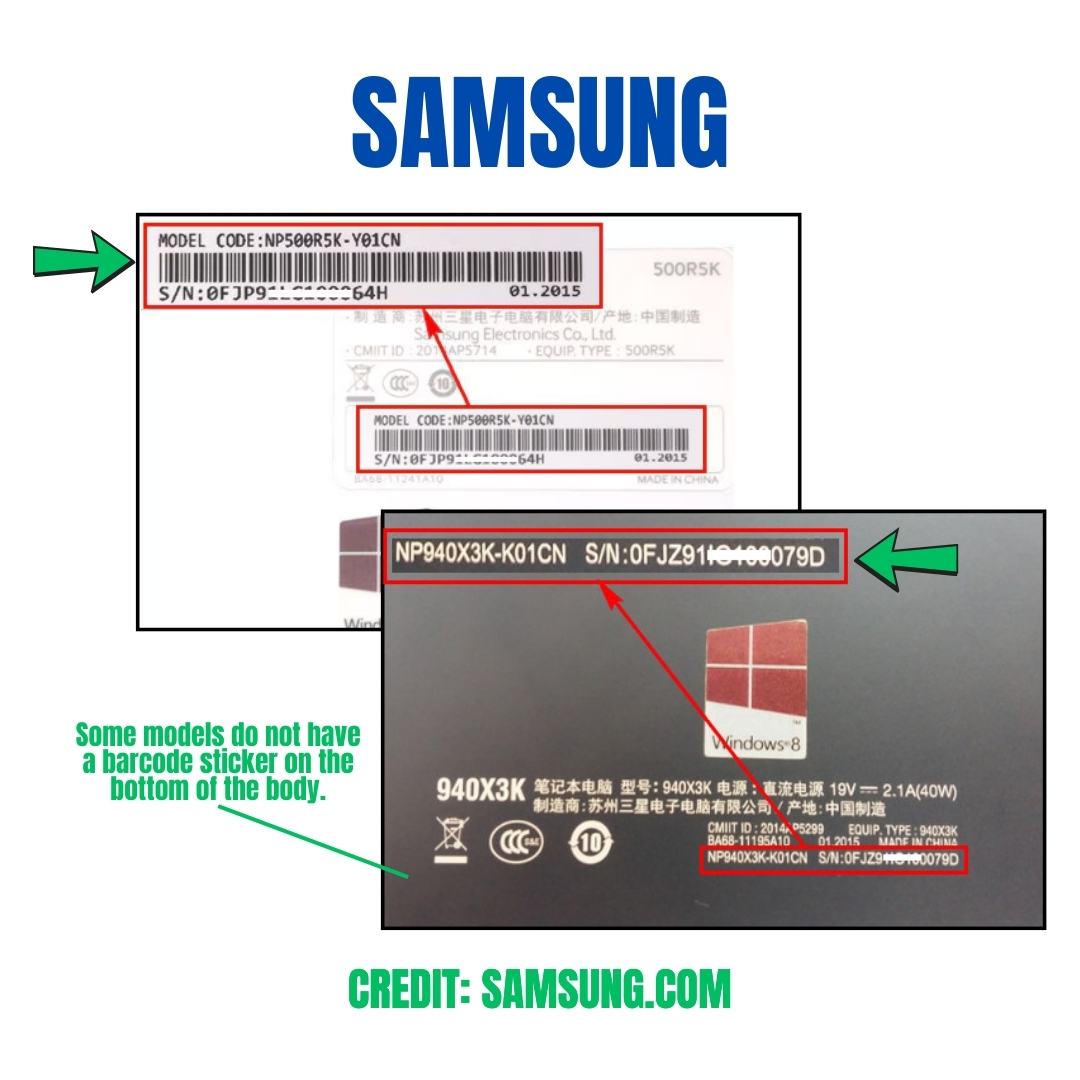
- You can provide Model Number or Serial Number.
- Both are printed on the bottom panel or inside the battery compartment.
- Example: Model NP930QDB-KF2US or S/N: 15 characters.
HP
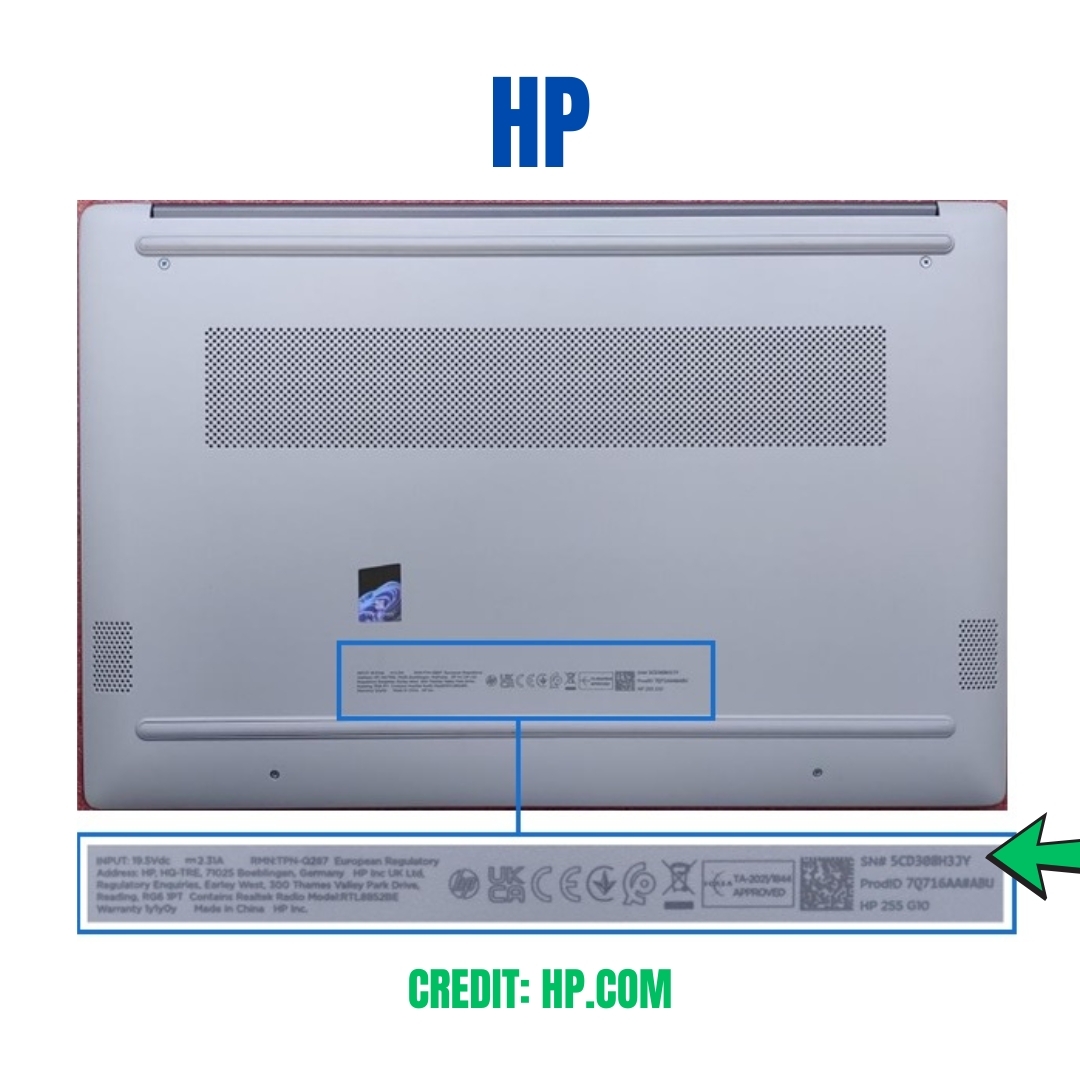
- Look for the Service Tag at the bottom of the laptop.
- It shows both the Product ID and Serial Number (S/N).
- Shortcut: Press Fn + Esc to see it in a system info window.
Microsoft (Surface Devices)
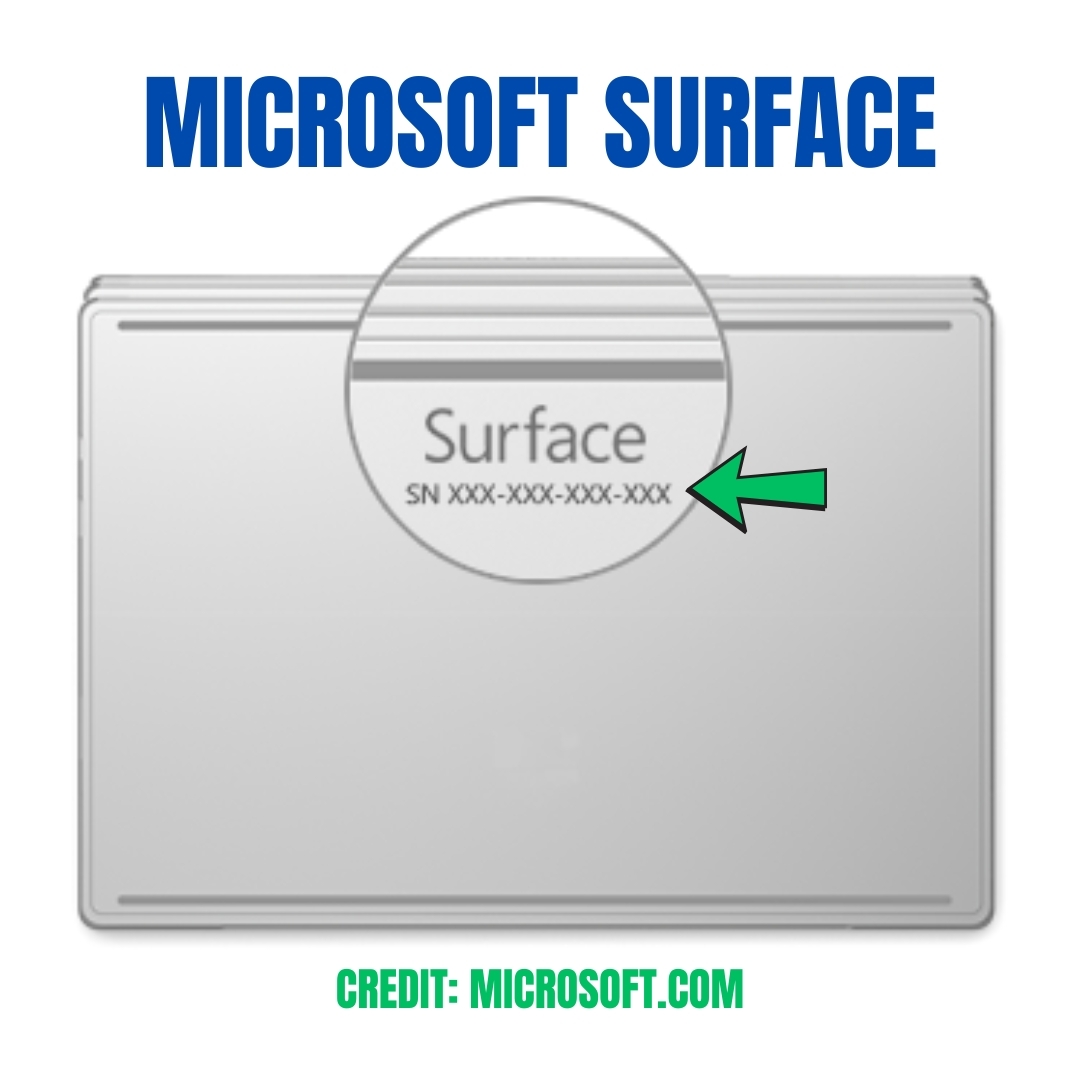
- You can provide Model Number or Serial Number.
- Model Number – Printed on the bottom edge (Surface Laptop) or under the kickstand (Surface Pro/Go). Example: Surface Laptop 4.
- Serial Number – In the same locations or under Settings → System → About.
Apple (MacBook, MacBook Air, MacBook Pro)
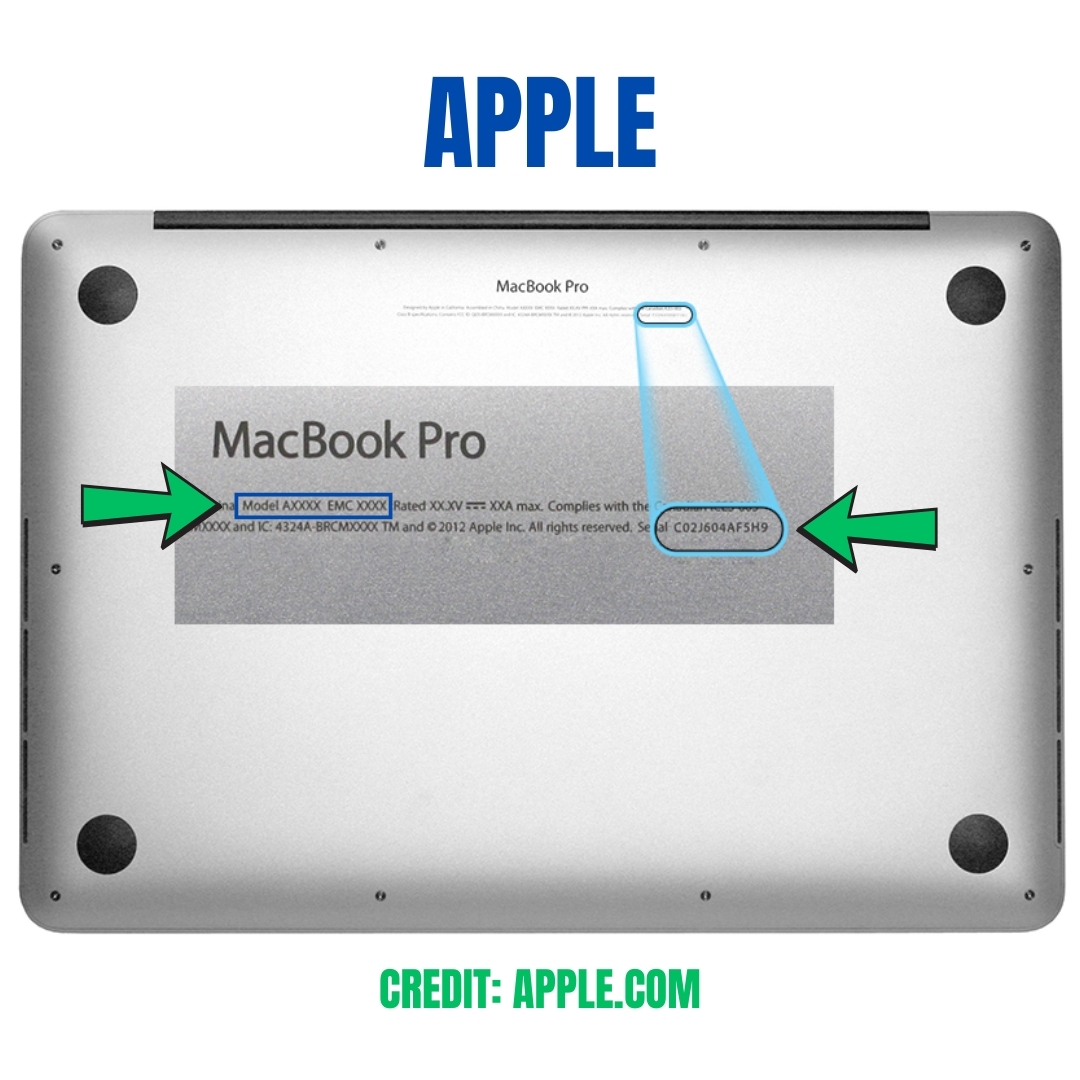
For Apple, we accept any one of these:
- Serial Number – On the bottom casing or under → About This Mac → System Report.
- EMC Number – Printed in small text on the underside (e.g., “EMC 3456”).
- Year & Model – Example: MacBook Pro 13-inch 2019.
MSI
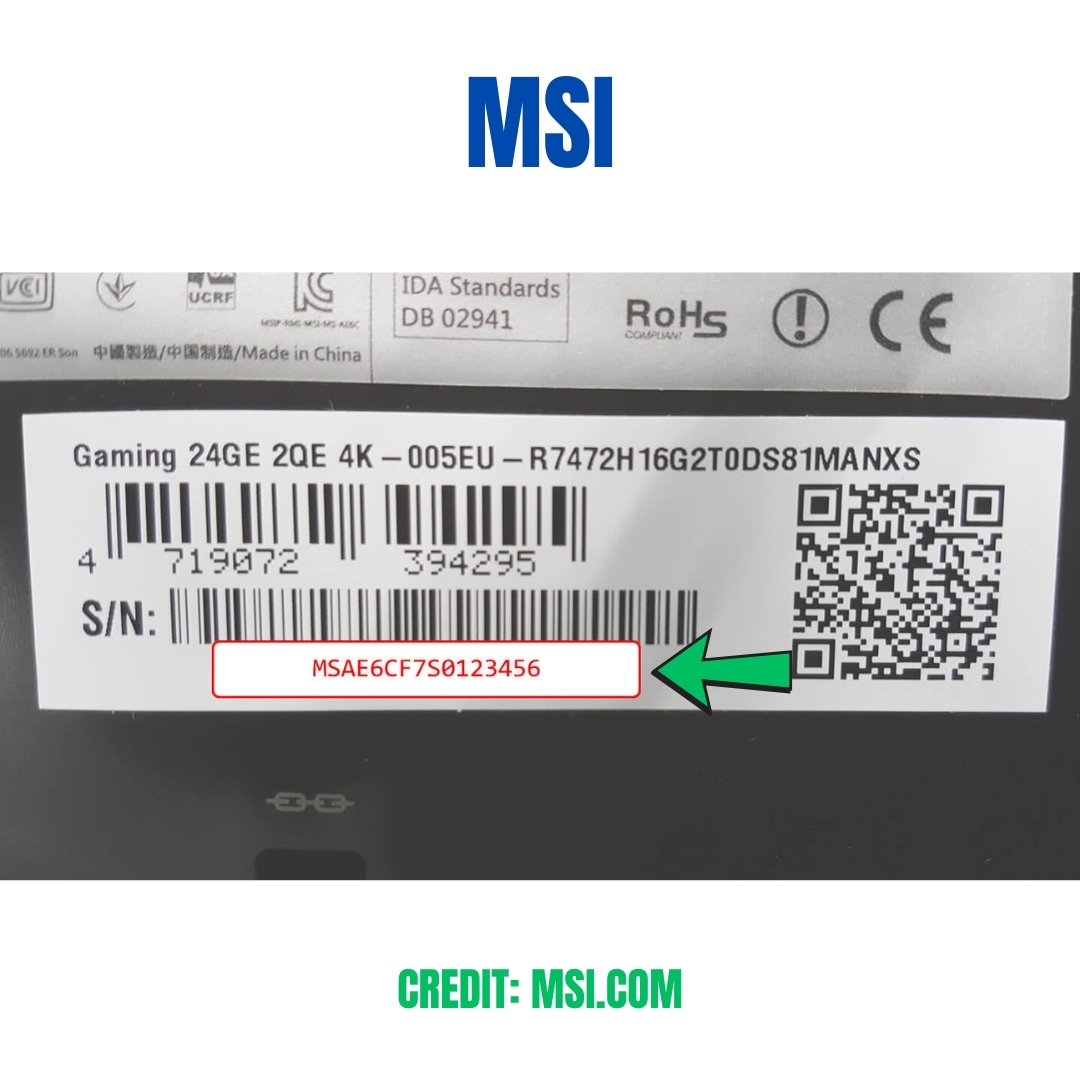
- We need the full exact model name (not just the serial).
- Example: MSI GS66 Stealth 10SE-442US.
- Printed on the bottom panel sticker or on the original box.
- Please provide the entire model code for an accurate match.
XPG Laptop
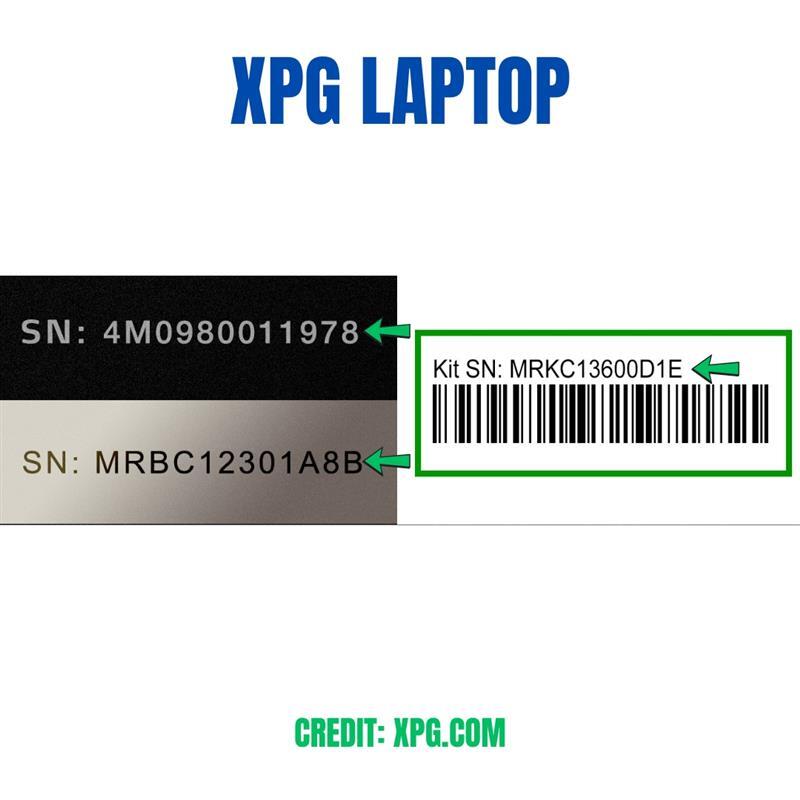
- Serial number can be found on warranty sticker or laser printing on the main body surface of the product.
- Serial Number Example: MRKC13600D1E(Kit SN), MRBC12301A8B (SN), 4M0980011978(SN).
✅ Tip:
If your label is missing or worn, you can also check inside BIOS/UEFI (press F2, F10, or Del at startup depending on brand).
19. How can I use a non-privacy screen in place of a privacy screen?
Yes, you can use a non-privacy screen as a replacement for a privacy screen. If your laptop has a privacy cable connection, simply leave that cable unplugged or secure it with electrical tape. The display will function normally, but the privacy feature will no longer be active.
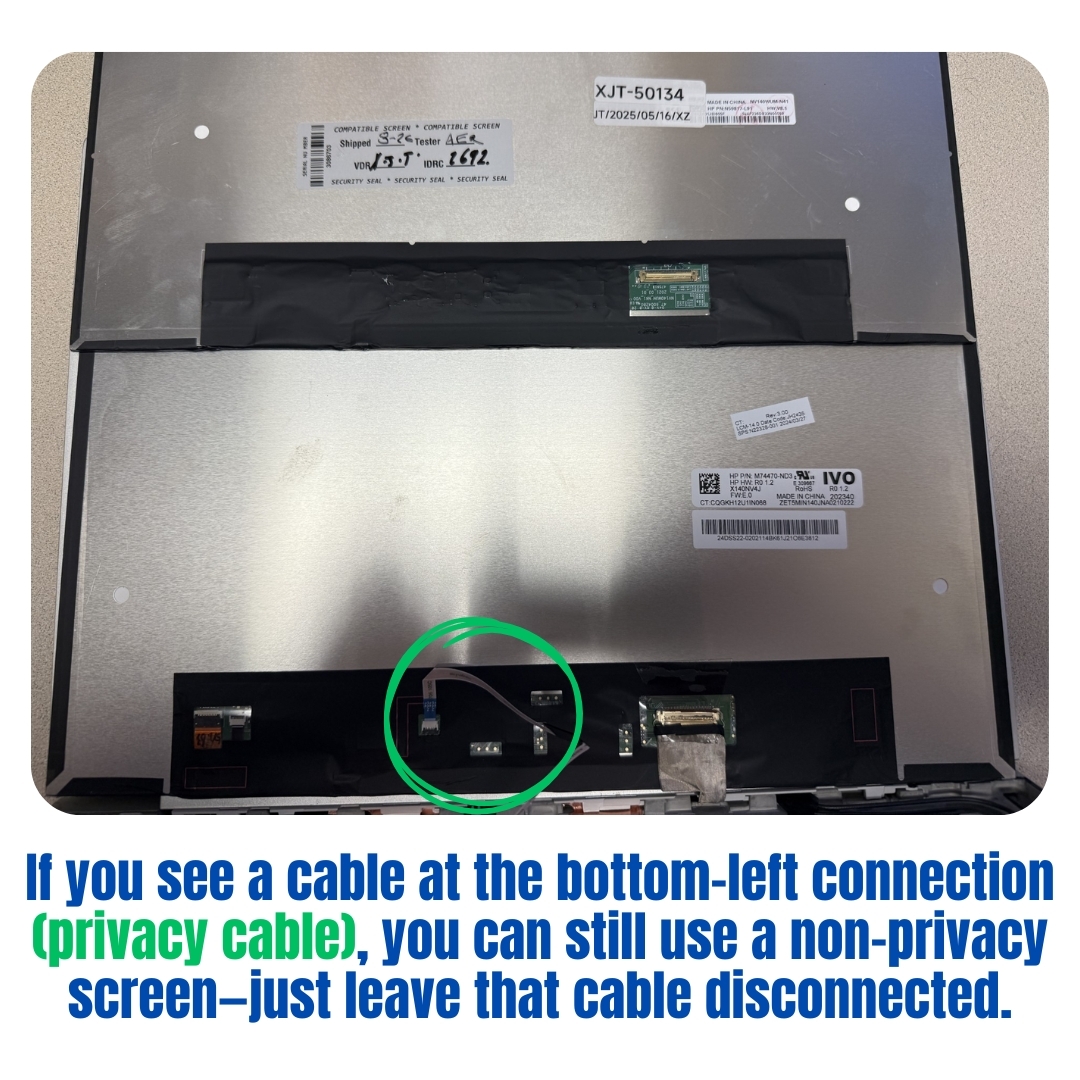
Privacy Cable Connection
✅ Important Note:
This replacement will work perfectly for normal display functionality. You'll just lose the privacy screen feature that limits viewing angles.
20. Why does the secondary connector on my laptop screen look different from my original one?
When replacing a laptop screen, it's common to notice that the secondary connector looks different. Some manufacturers leave this connector open and visible, while others hide it under a black covering for added protection.
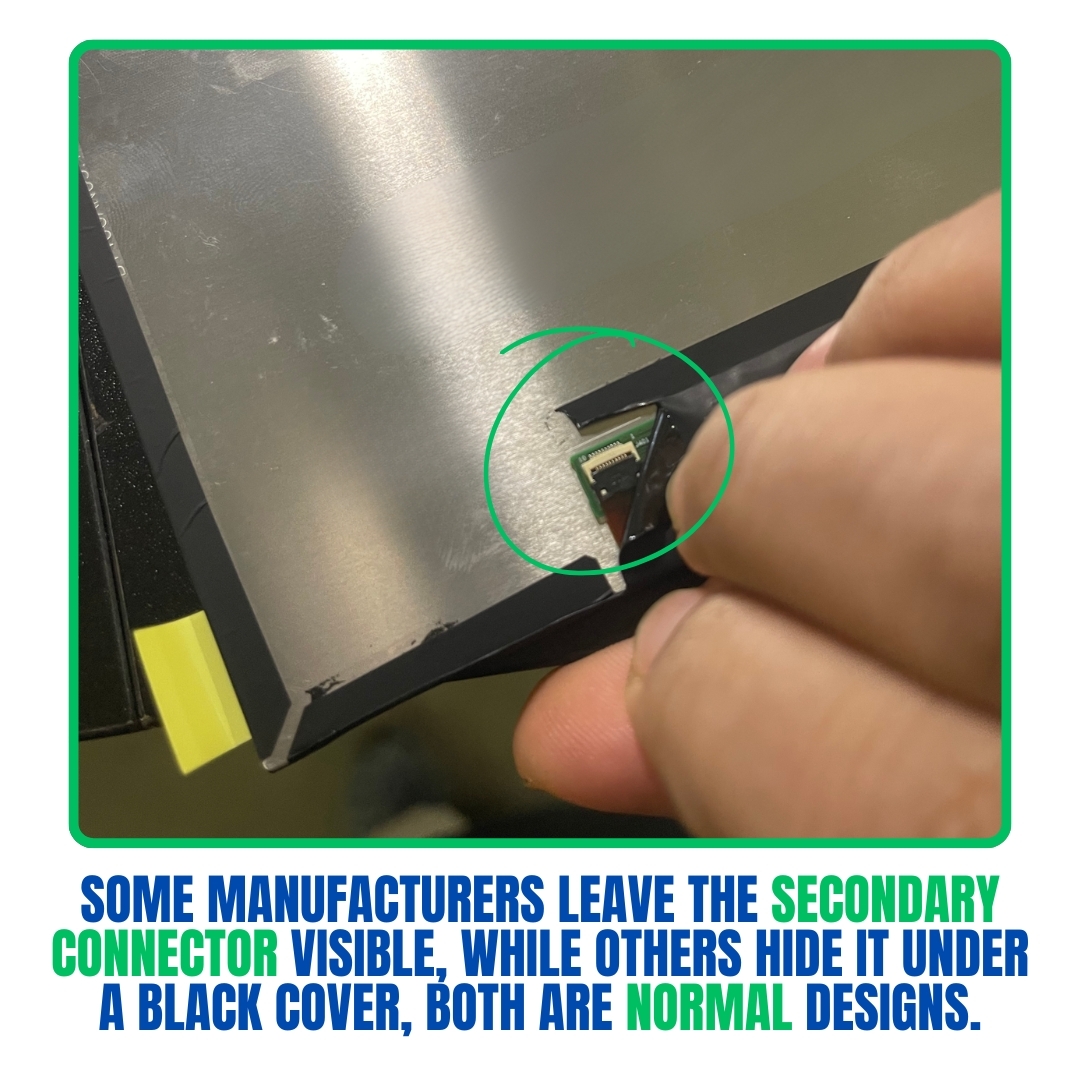
Secondary Connector Differences
This difference is a normal design choice and does not affect how your screen works. The main connector remains the same, so your screen will stay fully compatible with your laptop.
✅ Tip:
Always compare your old screen with the new one before installation. Differences in coverings are expected, but they don't change functionality or performance.
21. Why isn't the touch function working after screen replacement?
If the touch feature doesn't work after installing your new screen, it's often caused by static dust on the digitizer cable or digitizer card connection. During installation, static electricity can attract fine dust particles that interrupt the signal between the digitizer and your device.
How to Fix It:
Carefully clean the digitizer connections using:
- An alcohol pad, or
- A soft, lint-free cloth
Important: Handle the parts gently and avoid bending any cables.
Video Guide Available:
We have a video guide showing how to properly clean the touch digitizer connections for best results. Watch the cleaning guide here.
22. Why My Newly Purchased Screen Shows White or Foggy After Installation?
If your newly installed screen from Bliss Computers appears white, foggy, or shows no data, don't panic—this is often caused by a simple connection issue, not a defective screen.
What Causes This?
During installation, static electricity can attract tiny dust particles to the data connector, which can interfere with the signal between your laptop and the screen. Even a small amount of dust can cause display loss or distortion, much like a fingerprint smudge on glasses that blurs your view.
Before Opening an RMA Request:
Please clean the data cable connection using:
- An alcohol pad, or
- A soft, lint-free cloth
Important: Handle all parts gently—avoid bending or forcing the connector.
Video Tutorial Available:
For visual guidance, check out our video tutorial on cleaning the data cable connection: Watch the cleaning guide here.
In most cases, this quick cleaning step restores your display and prevents unnecessary returns.
23. Why are the hinges hard to rotate after installing my 2-in-1 screen assembly?
For some complete screen assemblies, especially on 2-in-1 laptops, the hinges can feel tight when you first try to rotate or open them. This is completely normal—new or replacement hinges often need a little help to start moving smoothly.
How to Fix It:
If the hinges don't rotate easily, gently start the rotation using a plastic pry tool. Plastic tools are best because they won't damage or crack the screen. After the first few movements, the hinges will loosen up and rotate normally.
Video Tutorial Available:
We also have a video tutorial showing the correct way to rotate and loosen tight hinges safely. Watch the video tutorial here.
24. How can I check my laptop's screen resolution?
You can easily check your laptop's display resolution in your system settings:
- Windows: Right-click on the desktop and select "Display settings." You'll see your resolution listed under Display resolution.
- Mac: Go to "System Settings" → "Displays." Your current resolution will appear there.
- Chromebook: Click the clock on the bottom-right, then select the gear icon (Settings). Go to "Device" → "Display."
Knowing your screen resolution helps ensure you order the correct replacement screen for your laptop.
Shipping FAQs
1. Why is My Package Not Showing Internal Tracking Like FedEx?
While USPS is reliable, its tracking system differs from FedEx and UPS.
USPS tracking focuses on key updates such as:
- Package Acceptance: Confirmation when the package is received.
- Transit Status: General updates during shipment.
- Final Delivery Confirmation: Notification once the package has been delivered.
What’s Missing?
USPS does not provide detailed internal scans, meaning you won’t see real-time updates or precise location tracking for your package.
In comparison, FedEx and UPS offer more robust tracking, including frequent intermediate scans and estimated delivery windows.
One major advantage of USPS is its Saturday delivery service at no extra cost, which sets it apart from FedEx and UPS.
For customers who need detailed tracking updates, it's important to weigh these differences when opting for USPS.
2. I live in Canada. If I import goods and pay a tariff, is that money lost? Can I claim it in my tax return?
No, the tariff amount is not necessarily a loss. In most cases, Canadian importers — including both businesses and qualifying individuals — can claim the tariff as a deductible expense or capitalize it for tax purposes.
Here's how it generally works:
- Businesses: Tariffs on imported goods may be considered part of the cost of goods sold or deductible as a business expense in the year incurred.
- Capital Goods: If the imported item is capital property (like machinery), the tariff may be added to the asset's value and included in the Undepreciated Capital Cost (UCC) for tax depreciation.
- Individuals: If you're an individual using the imported item for income-earning purposes (such as freelancing, small business, or rental property), the tariff may also be deductible.
- However, tariffs on items imported for personal use (like a personal laptop or household goods) are not tax-deductible.
Note:
- Deductibility depends on how the item is used and your specific tax situation.
- For accurate filing, consult a tax professional or refer to the Canada Revenue Agency (CRA) guidelines.
- The Canadian tax system is structured to support importers — tariffs used in business or income activities are typically not a permanent financial loss.
3. What precautions should I take when using a freight forwarder to ship goods to my country?
Can I use a freight forwarding company?
Yes, you can — but we recommend extreme caution. If you choose to use a freight forwarding company, it's your responsibility to ensure they handle the package properly.
Why do issues occur with freight forwarders?
Many freight companies remove or alter the original packaging to reduce shipping costs. This can result in:
- Loss of protective materials
- Glass screens arriving broken
- Claims being denied by shipping carriers like FedEx, UPS, or USPS
Does Bliss Computers ship in proper packaging?
Yes. We always ship in a sealed, well-padded, fragile-marked box.
If you receive your item without this box, or in damaged condition, it likely means the freight forwarder repacked or removed the original protection.
What should I tell my freight forwarder?
- Do not remove or discard the original packaging
- Do not repack items to reduce weight at the cost of safety
- If repacking is required, they must use proper cushioning
- Ask them to leave the original box untouched whenever possible
What if my screen breaks during freight forwarding?
Unfortunately, once a third-party freight company takes possession, FedEx/UPS/USPS will not accept claims — and Bliss Computers cannot offer replacements or refunds for damage that occurs after the item leaves our original packaging.
Any tips if I must use a freight forwarder?
- Buy insurance from your freight provider to protect your shipment
- Provide them clear instructions to handle it as a fragile item
- Inspect the item immediately upon arrival and notify them of any visible damage
4. Do you ship to Hotels?
Shipping to Hotels or Temporary Stays – What You Need to Know
We're happy to ship to hotels or short-term accommodations, but there are a few important things you must do to avoid delivery issues or delays. Please read carefully:
✅ 1. Plan Your Order Around Your Hotel Dates
Place your order ahead of your stay. Provide us with the exact dates you will be at the hotel so we can schedule ground shipping accordingly.
✅ 2. Clearly Mention "Hotel Delivery" at Checkout
In the order notes, clearly state that you're staying at a hotel. This helps prevent confusion or flagging your order as suspicious. Transparency avoids unnecessary verification delays.
✅ 3. Confirm Hotel Receiving Policies
Call the hotel ahead of time and confirm the following:
- That they accept packages for guests
- The correct receiving address (some hotels have separate package handling locations)
- That the reception is aware of your incoming package
⚠️ Example: In cities like Las Vegas and New York, hotels often have dedicated receiving departments separate from the front desk. Miscommunication here can result in lost or returned packages.
✅ 4. Use Your Full Name & Hotel Reservation Details
Ensure the shipping name matches your hotel reservation. If possible, include your check-in date on the shipping label or in the order notes.
✅ 5. Pre-Verify Your Order
Please verify your part number, screen size, and compatibility before placing your order. We do not recommend guessing part numbers while traveling.
✅ 6. Traveling Abroad?
If you plan to take your screen internationally:
- Understand that airport security scanners may damage fragile glass items
- We highly recommend having the screen installed in the U.S. before leaving
- Carry it in a protective case and avoid checking it in with luggage
Common Sense Reminder
You're ordering a fragile, high-value part. Treat it with care. Communication and planning prevent headaches.
If you have questions before placing a hotel or international order, contact us directly for guidance.
5. What If My Package Arrived Damaged After Being Forwarded by a Freight Forwarder?
If your package was shipped safely by us and later forwarded by a freight forwarder, but arrived damaged, it's important to understand where the responsibility lies.
We (the original shipper) are not liable for damage that occurs after the package leaves our custody and is forwarded by your selected freight forwarder.
This situation is well documented—even Google/AI agrees:
Key Points:
- Once a freight forwarder accepts and processes your package, they take full responsibility for its handling and delivery condition.
- Any claims for damage must be made directly with the freight forwarder, not with the original seller or shipper.
- We strongly recommend customers choose reputable freight forwarders and consider purchasing additional insurance for high-value items.
Our role ends when the item is safely delivered to your freight forwarder.
Please do not hold us responsible for issues that occur after that point.
If you'd like help gathering tracking or packaging proof for your claim with the forwarder, we're happy to assist.
6. Do the screen replacement tools come with my order? What if I can't find them?
Yes! We include a FREE tool kit coupon with eligible screen orders. These tools are complimentary and come packaged inside the box. Sometimes, customers accidentally throw them away while opening the package—so please check carefully before discarding any packaging materials.
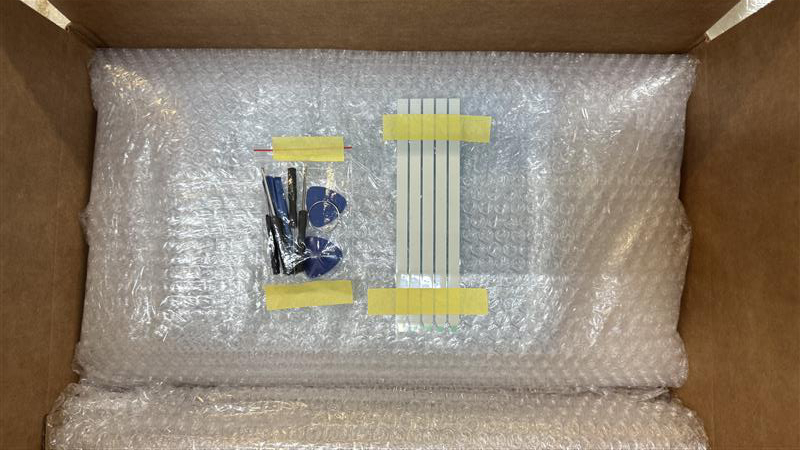
Free Replacement Tools Included with Screen Orders
Since the tools are completely free, we cannot offer refunds or monetary compensation if they are misplaced or lost during unpacking. Think of them as a little bonus gift to make your installation easier—no extra charge, no added cost.